Create Revit view filters and templates
Create parameter-based view filters and save their configuration in Revit view templates with Adarcus. See an example using finish presentation.
When this case is useful
When you need to display or locate elements according to their parameters, you can ask Adarcus to create filters and configure how those elements appear in views. The configuration can be saved in a view template for reuse. The finish colors in the video are an example; you define the parameters, rules and presentation your project needs.
What to ask Adarcus
Adapt names, scope and criteria to your project. This request summarizes the goal of the example.
Create filters using the parameters and rules I specify. Apply the graphical settings for each group and save the configuration in a view template for reuse in other views.
How the process works
Define the rules
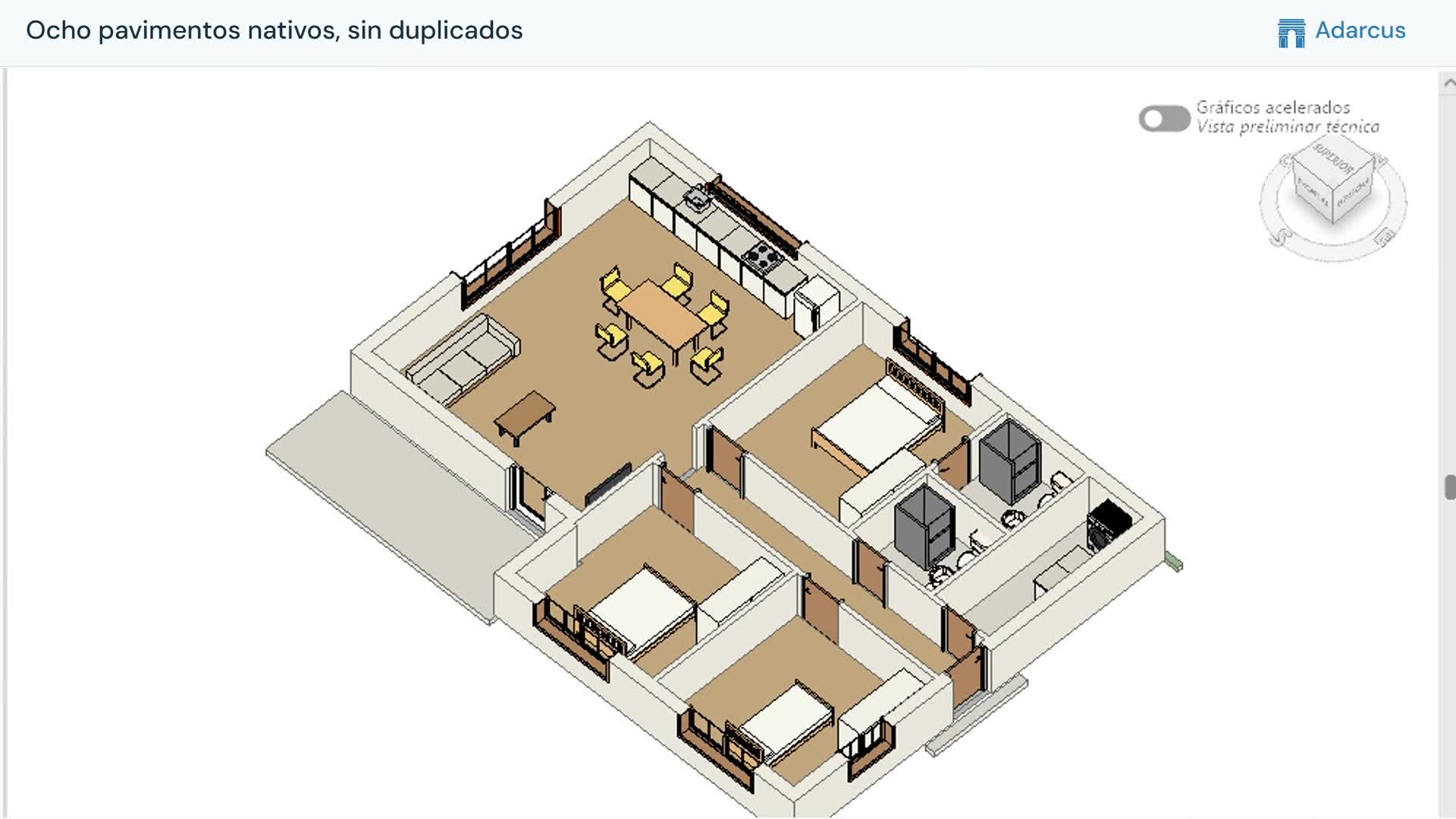
Specify the categories, parameters and values that each filter should group. The video distinguishes floors by type.
Configure the presentation
Request the colors, fills or graphical changes needed for each group. The example applies two colors to floor finishes.
Save a view template
Adarcus saves the configuration in a view template. Specify which properties it should control for reuse in other views.
Questions about this case
Does coloring a view change model materials?
This workflow uses filters and graphical overrides. Check actual materials in the type properties and its layers.
What should I check when applying the template elsewhere?
Check the properties controlled by the template, visible categories and whether the rules find the expected elements.
Want to see how this fits your project?
Book an Adarcus demo