Create Revit sheets from Excel
Automate Revit sheet creation and layout with Adarcus. The example uses Excel to organize sheet numbers, names and views to place.
When this case is useful
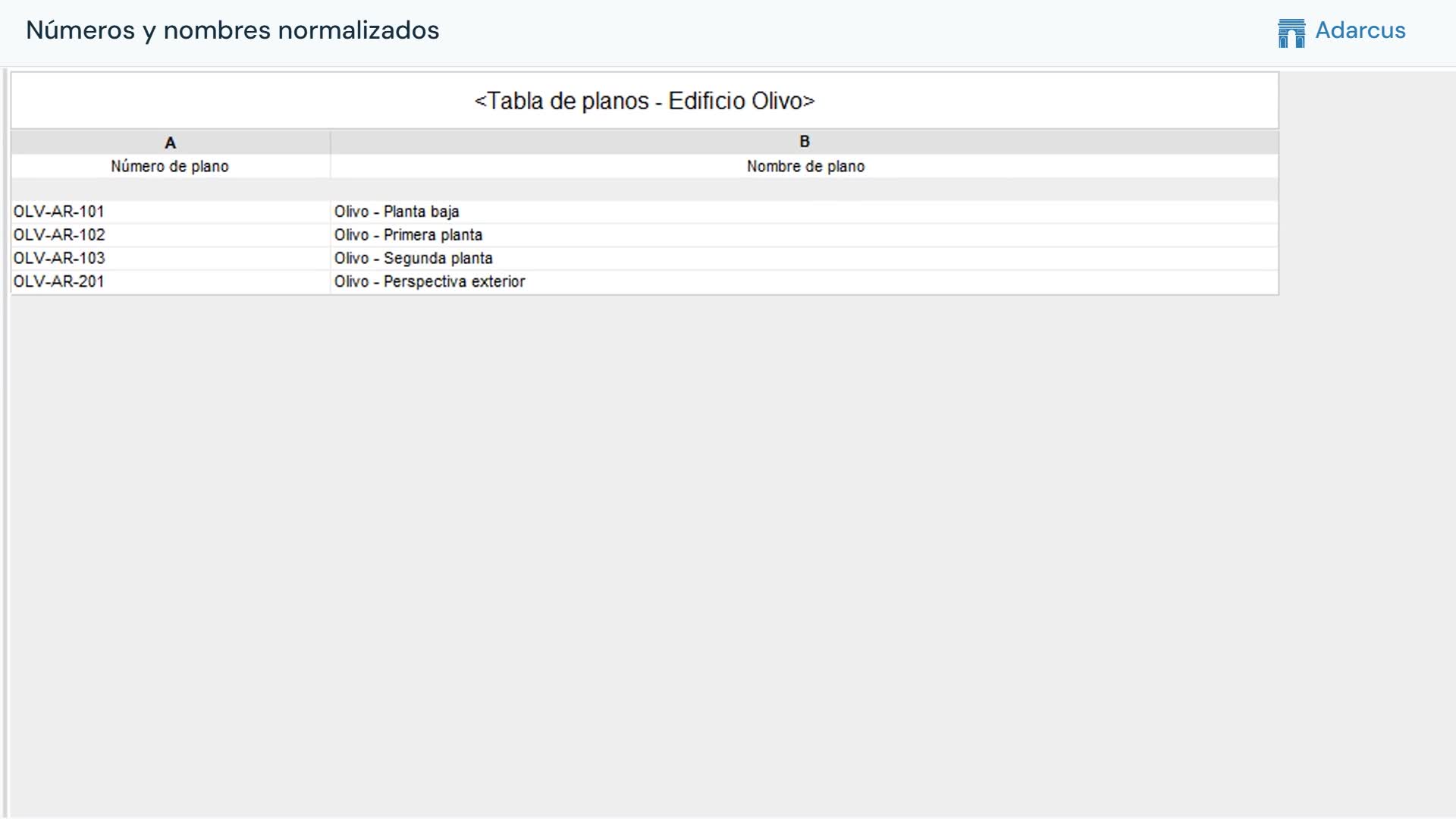
When you need to lay out many sheets, you can automate sheet creation and view placement by specifying the title block, numbering and layout criteria. An Excel file can help organize that information, but you do not need to have one prepared in advance. The video uses an Excel list to place existing views on sheets.
What to ask Adarcus
Adapt names, scope and criteria to your project. This request summarizes the goal of the example.
Create the sheets listed in this Excel file using the project title block. Assign their numbers and names and place the corresponding views using the specified layout criteria, without duplicating views or sheets.
How the process works
Define the sheets and their views
Specify the sheets you need, their numbering and the views each should contain. In this example, that relationship is supplied in Excel.
Specify the layout
Identify the title block and the criteria for placing views within the drawing area. The views in this video already existed.
Create and open the sheets
Adarcus creates the sheets and places the views according to the request. The recording opens one sheet to show its layout.
Questions about this case
Can Adarcus also create the views?
Yes. This example only places existing views on sheets, but you can also ask Adarcus to generate the views you need before laying out the sheets.
Do I need an Excel file prepared in advance?
No. You can describe the sheets and layout criteria in the conversation. Excel is one way to organize numbers, names and views when working with many sheets, as in this example.
Want to see how this fits your project?
Book an Adarcus demo