Export Revit quantities to Excel
Create a Revit area schedule and export it to Excel with Adarcus. Watch a 33-room example with room-level detail and a summary by dwelling.
When this case is useful
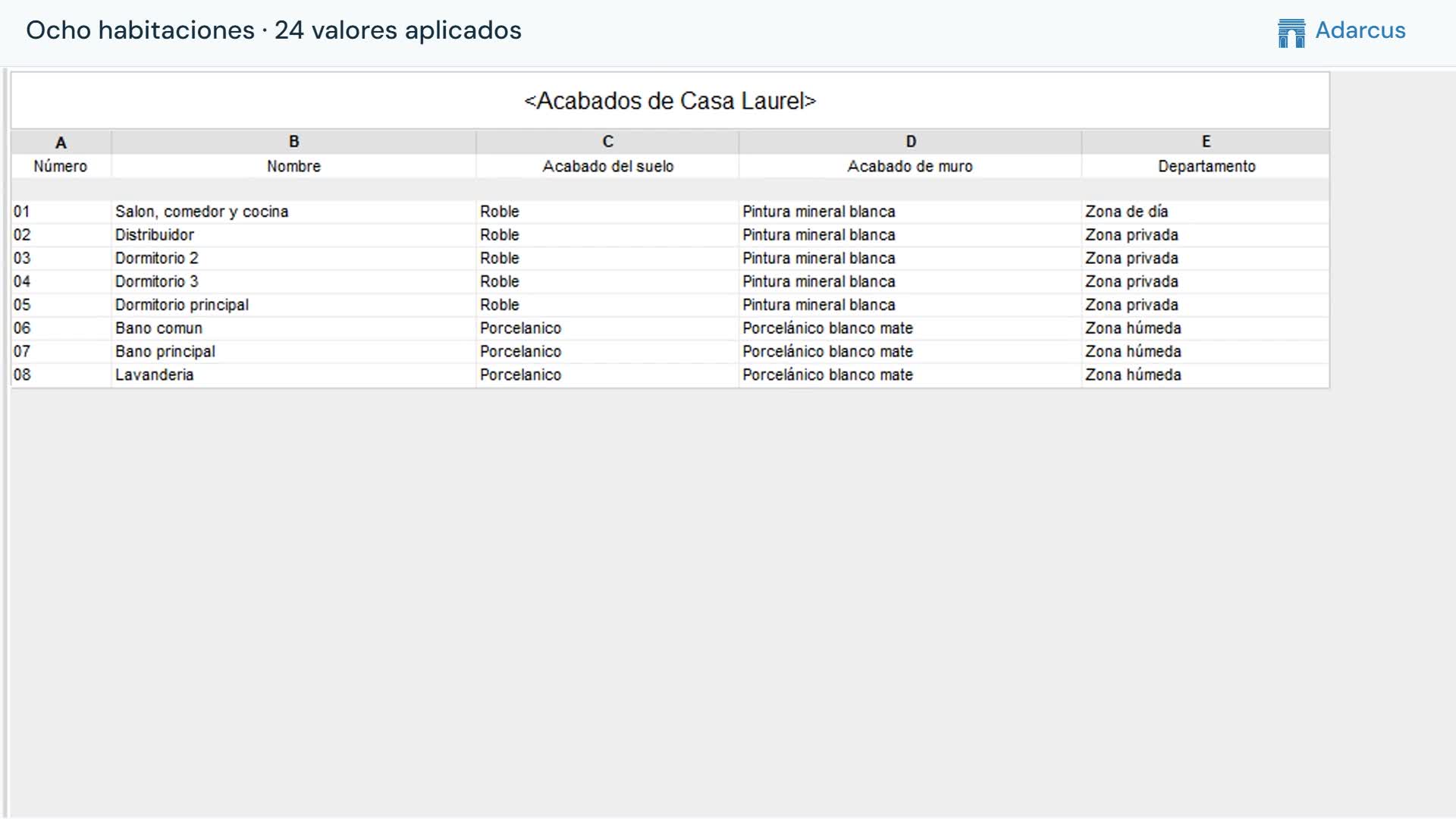
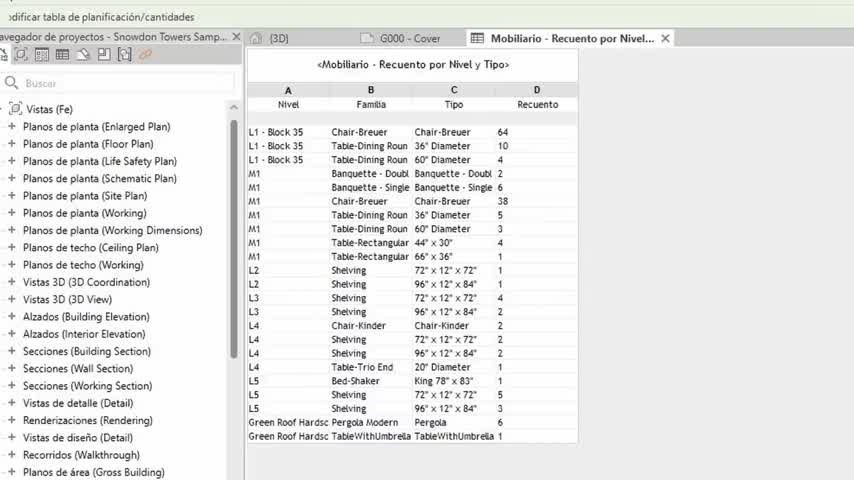
When you need to work with quantities, counts or model information outside Revit, you can request a schedule and export it to Excel for analysis or sharing. You choose the elements, fields and grouping. The example uses room areas with separate detail and summary sheets.
What to ask Adarcus
Adapt names, scope and criteria to your project. This request summarizes the goal of the example.
Create a schedule of the model’s rooms with number, name, level, department and area in m². Group by level and dwelling, then export it to Excel with detail and summary sheets, retaining numeric values.
How the process works
Create the native schedule
Specify fields, units and grouping. Keep a row per room so the detail can be checked.
Review before exporting
Check that the requested rooms appear and that the totals match the chosen scope.
Generate the workbook
Request detail and summary sheets. Keep areas as numbers and use cell formatting to display two decimals.
Questions about this case
Are areas exported as numbers or text with units?
The example requests numeric areas in m² so they can be used in Excel. Two decimal places are applied as display formatting.
Does Excel update when the model changes?
This case shows a one-time export. If rooms change, review the schedule and generate a new export.
Want to see how this fits your project?
Book an Adarcus demo