Convert IFC to native Revit elements
Watch Adarcus reconstruct an architectural IFC with editable Revit elements. See what to ask and how to compare the result with the source file.
When this case is useful
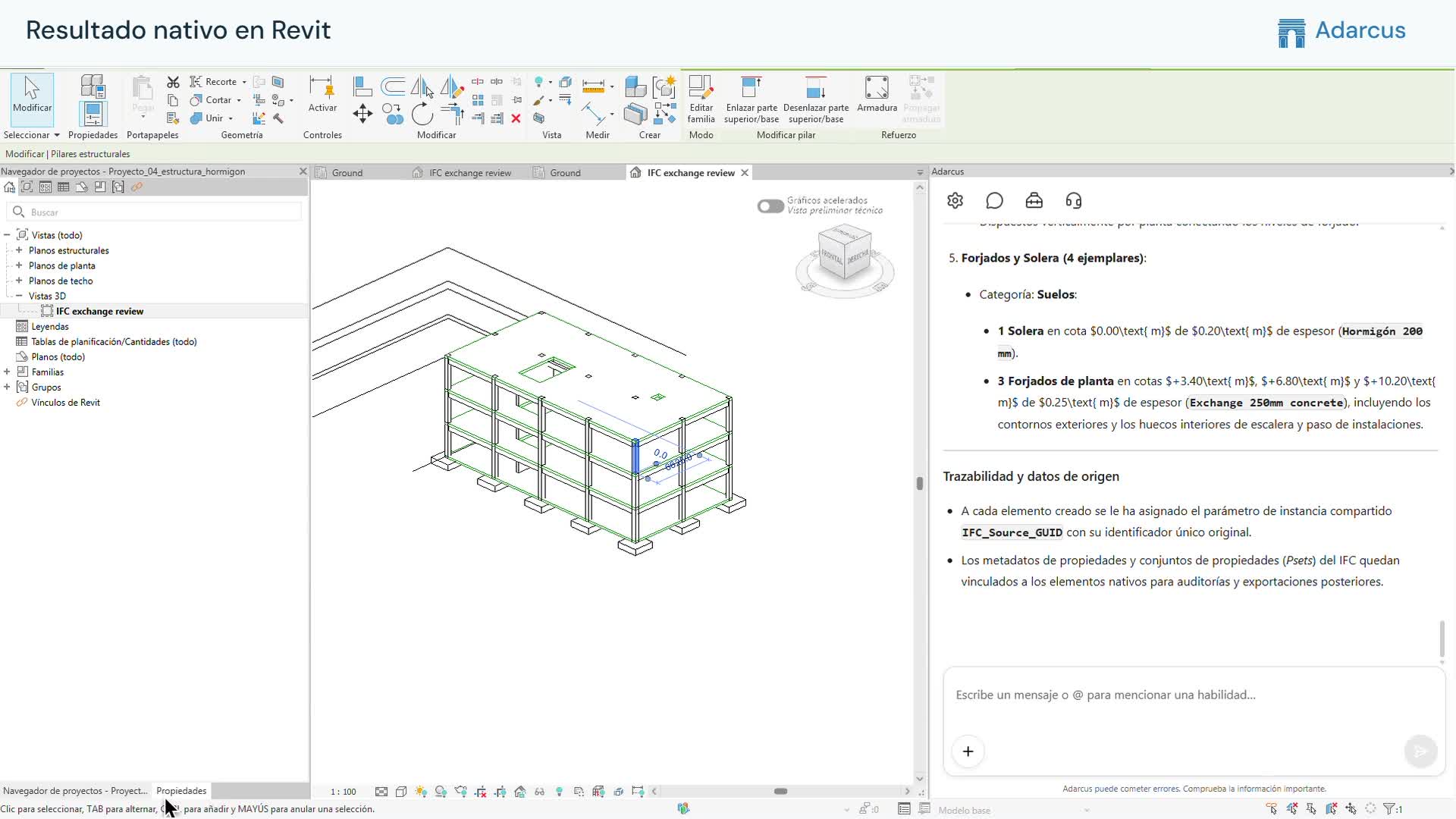
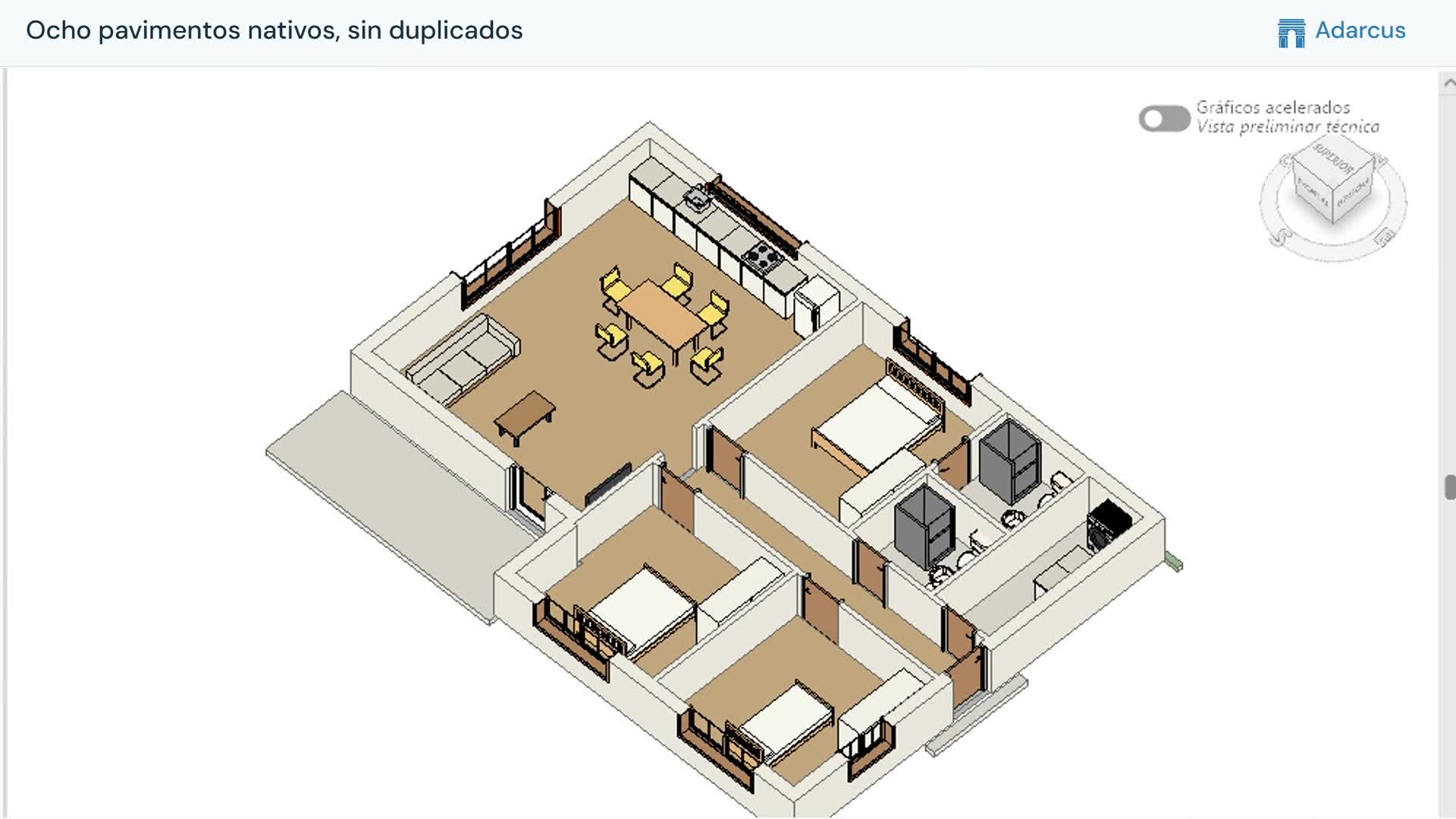
When you receive an IFC and need to continue modeling or edit its elements in Revit, you can ask Adarcus to recreate it with native elements. The video shows an architectural example and a comparison with the source IFC.
What to ask Adarcus
Adapt names, scope and criteria to your project. This request summarizes the goal of the example.
Recreate this IFC with native Revit elements and prepare a view to compare them with the source model.
How the process works
Provide the IFC
Explain that you need to continue modeling in Revit and specify the categories you need. File quality and organization affect the reconstruction.
Request editable elements
Adarcus uses the source file to build the native model. Ask it to identify elements that need particular attention.
Compare both models
Inspect the model in 3D and select the created elements to check their properties against the IFC.
Questions about this case
Is linking an IFC the same as converting it to native Revit?
This workflow aims to create editable elements in the Revit project. The IFC provides the source and reference for checking what has been reconstructed.
What should I check after IFC conversion?
Start with levels and overall position. Then review categories, dimensions and openings on a sample of elements, and compare the data you need to retain.
Want to see how this fits your project?
Book an Adarcus demo